
This guide explains how to pay a provider’s final invoice once they have completed your request and require the remaining payment before forwarding the records to us.
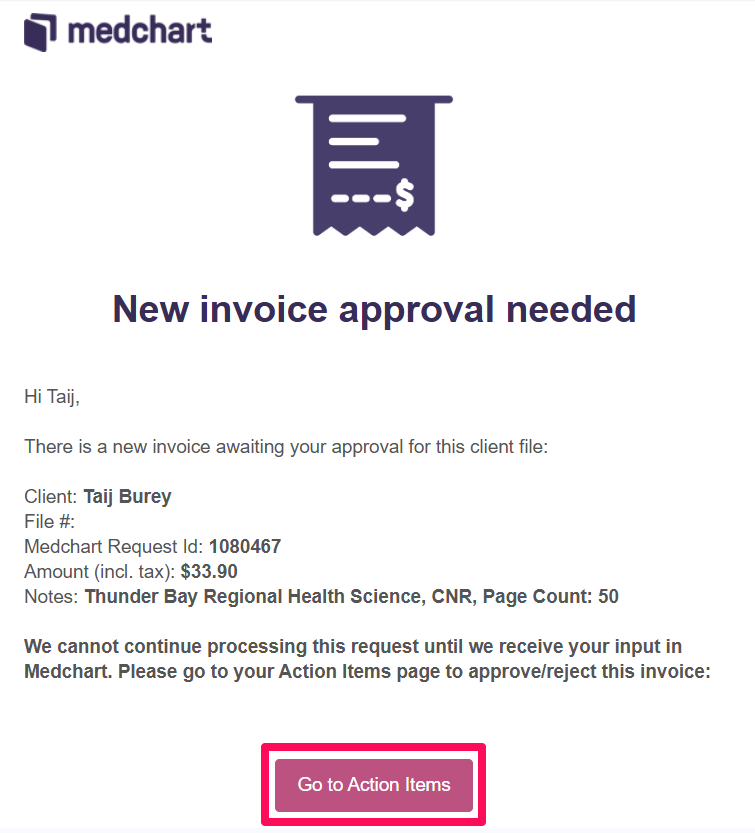
1. Check your email for a payment notification.
You will receive an email notifying you that a payment is pending. In that email, click the “Go to Action Items” button to begin the payment process.
2. Access your request cart.
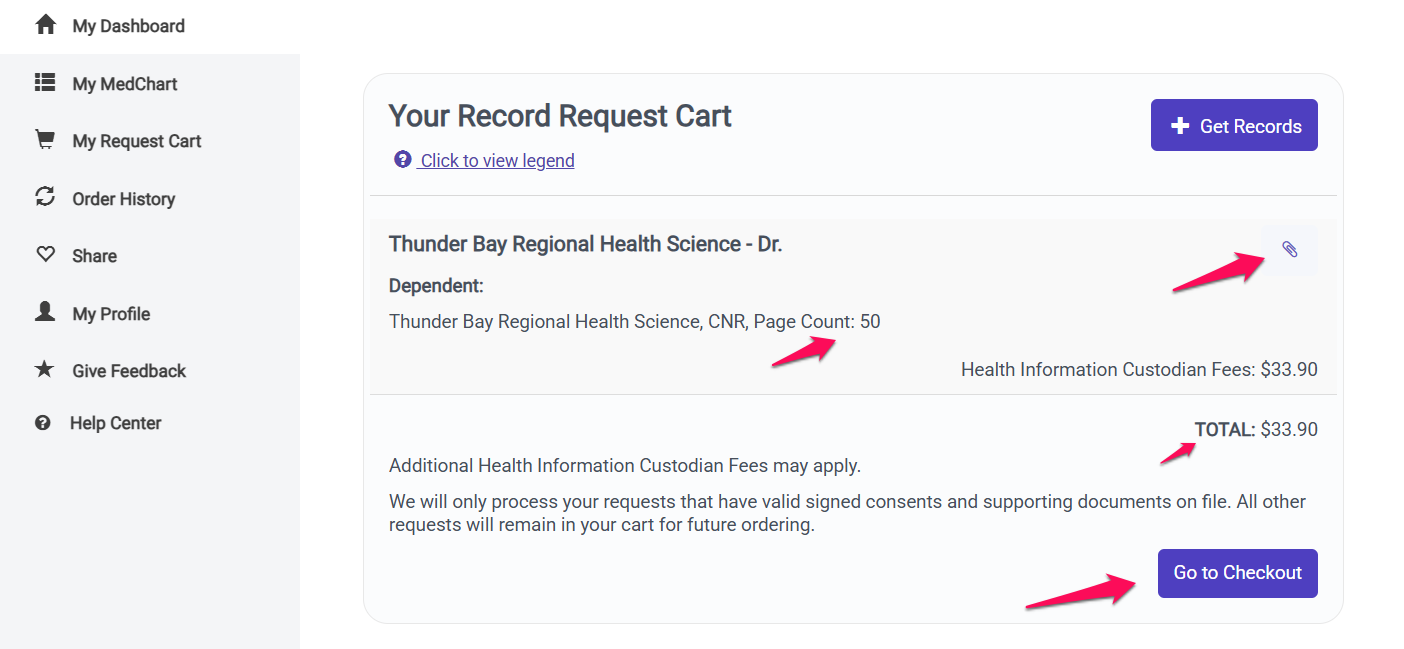
After logging into your MedChart account, you will be directed to your dashboard. Click the “My Request Cart” tab to open your cart and proceed with the payment. .

3. Review your invoice details.
After accessing your Request Cart, you can download the invoice provided by the provider by clicking the paperclip icon. The invoice section will also display the page count (if supplied) and the total amount pending for payment. Once you’ve reviewed all the details, click the “Go to Checkout” button to proceed with the payment.
4. Complete your payment and access your records.
You will be prompted to enter your card details to complete the payment. After entering your information, click the “Submit Order” button. Once the payment is received, any records that have already been uploaded and are in Pre-Release status will automatically become available for download under the “My MedChart” tab.

5. Downloading your records
Please click here for instructions on how to download your records.
Congratulations! You now know how to pay a provider’s final invoice and access your records through MedChart.
If you have questions or feedback, please feel free to reach out to us at support@medchart.ca.